Change Windows version and language with DISM and in-place upgrade
A collection of commands and tools to add, list and remove language packs in Windows 10/11 single language with DISM, perform an in-place upgrade to switch editions (Home → Pro, Pro → LTSC IoT, etc.) without losing files or settings, and repair AppX packages after the upgrade.
Windows single language doesn't let you change languages from Settings. You need to download the .cab for the desired language with a GUI helper. W10_11LangPack is the easiest: it detects your build and downloads the correct package from Microsoft's servers.
Unzip and run W10_11LangPack.ps1 in PowerShell (right-click → Run with PowerShell). If execution policy blocks it, run Set-ExecutionPolicy -Scope Process Bypass first.
dism /Online /Add-Package /PackagePath:C:\path\to\langpack.cab
Use this to find the exact Package Identity for the language you want to remove (e.g. Spanish if you're going to leave only en-US for an in-place upgrade to LTSC IoT).
dism /Online /Get-Packages
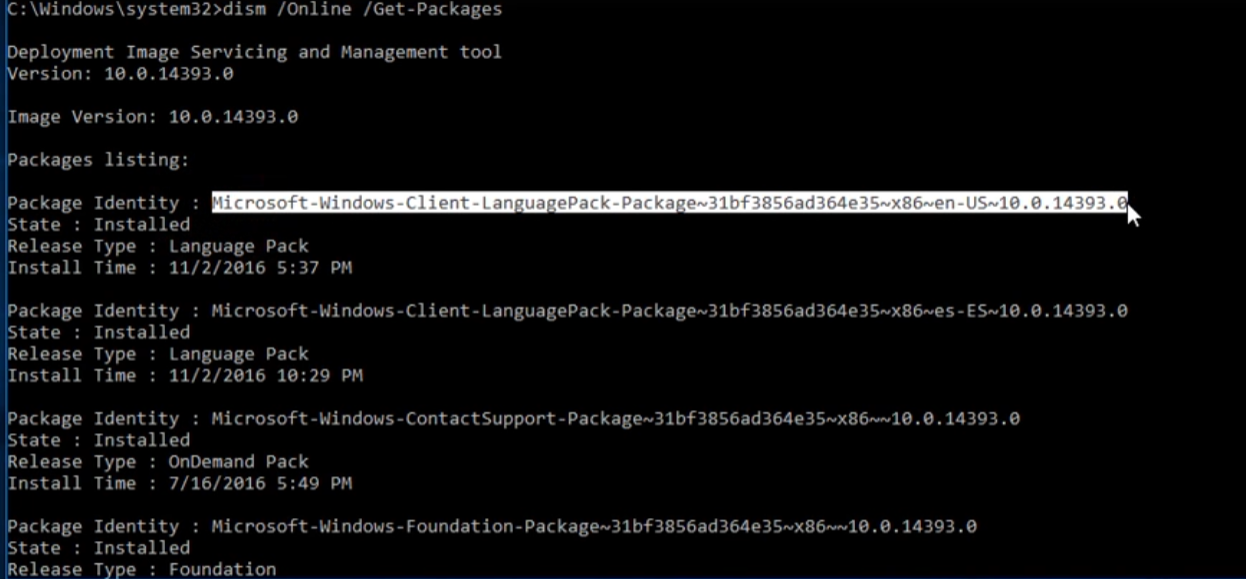
Package Identity of the language you want to remove (highlighted row).dism /Online /Remove-Package /PackageName:Microsoft-Windows-Client-LanguagePack-Package~31bf3856ad364e35~x86~es-ES~10.0.14393.0
The LTSC IoT installer only accepts an upgrade if the system already reports itself as IoTEnterpriseS. This temporary registry patch tricks the installer into offering "Keep files, apps and settings".
reg add "HKLM\SOFTWARE\Microsoft\Windows NT\CurrentVersion" /v EditionID /d IoTEnterpriseS /f
If you'd rather not touch the registry by hand, use one of these scripts that automate edition detection and switching:
Option A — In-Place_Upgrade_Helper.bat (local script, mounted ISO required)Run as Administrator with the LTSC IoT ISO already mounted. The script detects the current edition, adjusts EditionID and launches setup.exe with the correct arguments to upgrade while keeping files and apps.
irm https://get.activated.win | iex
MAS also offers ESU bypass to extend Windows 10 until 2027 if you'd rather not switch editions. See massgrave.dev.
After an in-place upgrade some Microsoft Store apps usually break (Start menu missing icons, Calculator not opening, etc.). This one-liner reinstalls them from the existing manifests.
PowerShell as AdministratorGet-AppXPackage -AllUsers | Foreach {Add-AppxPackage -DisableDevelopmentMode -Register "$($_.InstallLocation)\AppxManifest.xml"}